What are Canva Apps and How to Use Them to Grow Your Business

There is a point in every business where creating content starts to feel heavier than it should.
You are showing up consistently. You have the ideas. But the process of actually bringing those ideas to life inside Canva feels slower, more manual, and a little more frustrating than you expected.
This is exactly where Canva apps come in.
They are not just extra features tucked into the platform. They are tools designed to expand what Canva can do, helping you create faster, design smarter, and build content that actually supports your growth.
In this guide, we’ll will walk you through what Canva apps are, how to find them inside the Canva app marketplace, and how to use them strategically in your business. Our hope is that by the end of this article you’ll have a clearer, more efficient way to approach your content creation!
What Are Canva Apps?
Let’s start simple.
Canva apps are third party and built in tools inside Canva that expand the platform’s functionality. Think of them like mini tools that plug directly into your design dashboard.
Instead of bouncing between five platforms to:
- Remove backgrounds
- Generate AI images
- Create mockups
- Build carousels
- Add special effects
You can do it all inside Canva using apps.
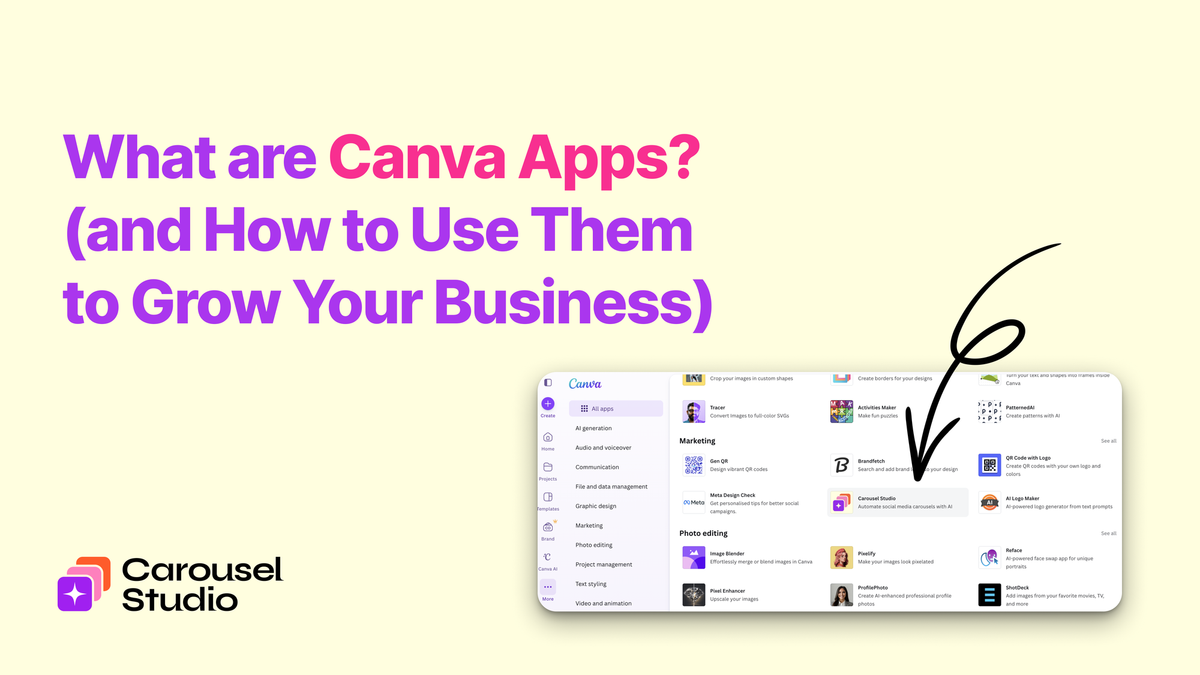
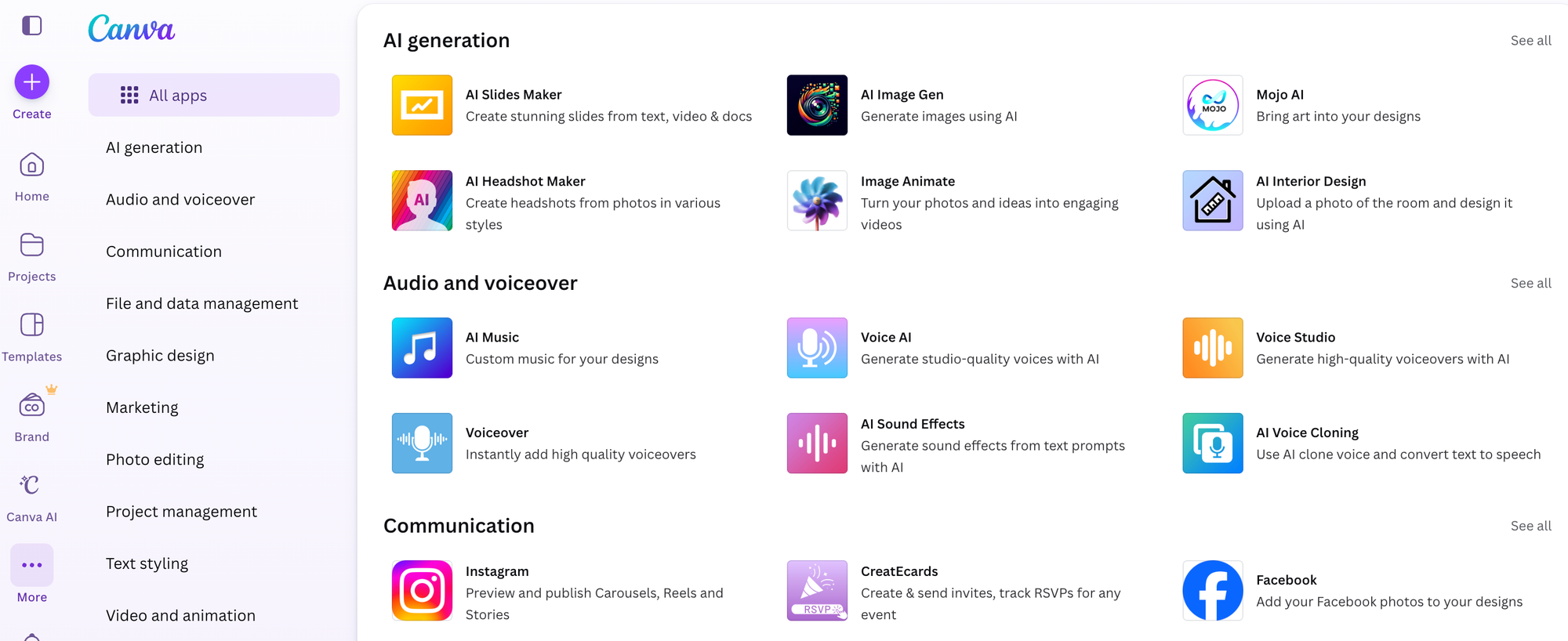
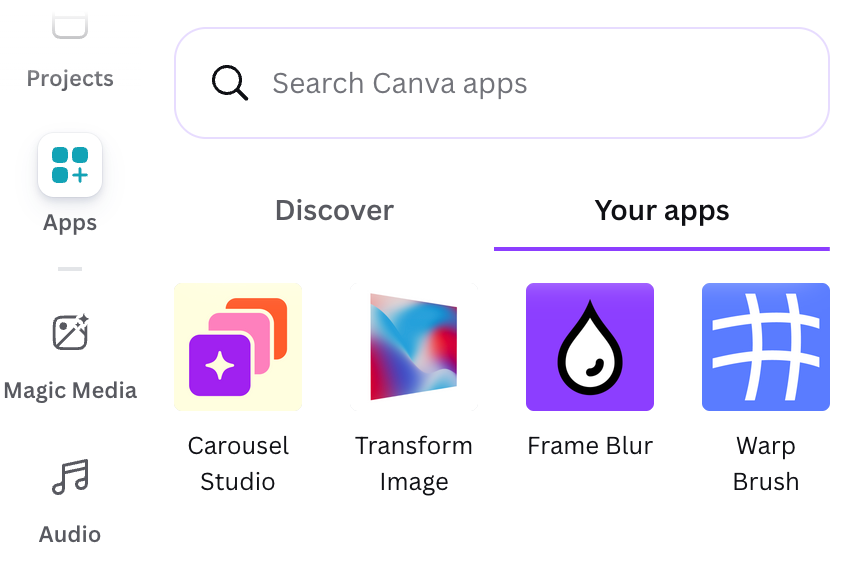
Take yourself on a tour of the Canva app marketplace. It is essentially a library of apps you can install and use directly within your design projects.
Strategically, this matters because fewer tools means:
- Faster content production
- Less decision fatigue
- A cleaner workflow
- More consistency in your brand visuals
When you are running a business, efficiency is not optional. It is leverage.
How to Find and Use Apps in Canva
If you have never used Canva apps before, here is exactly how to find them.
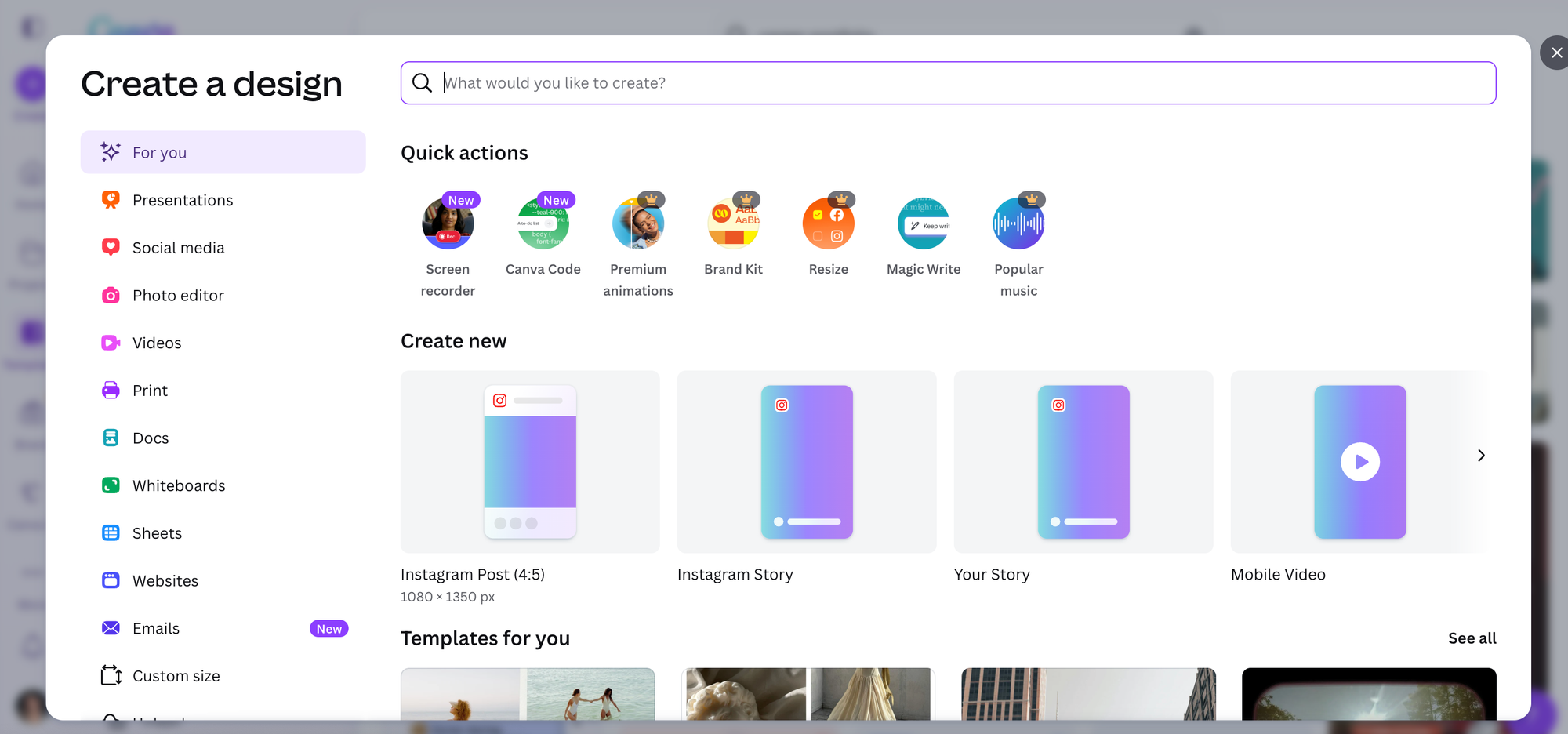
Step 1: Open a Design
Start inside any design file in Canva.
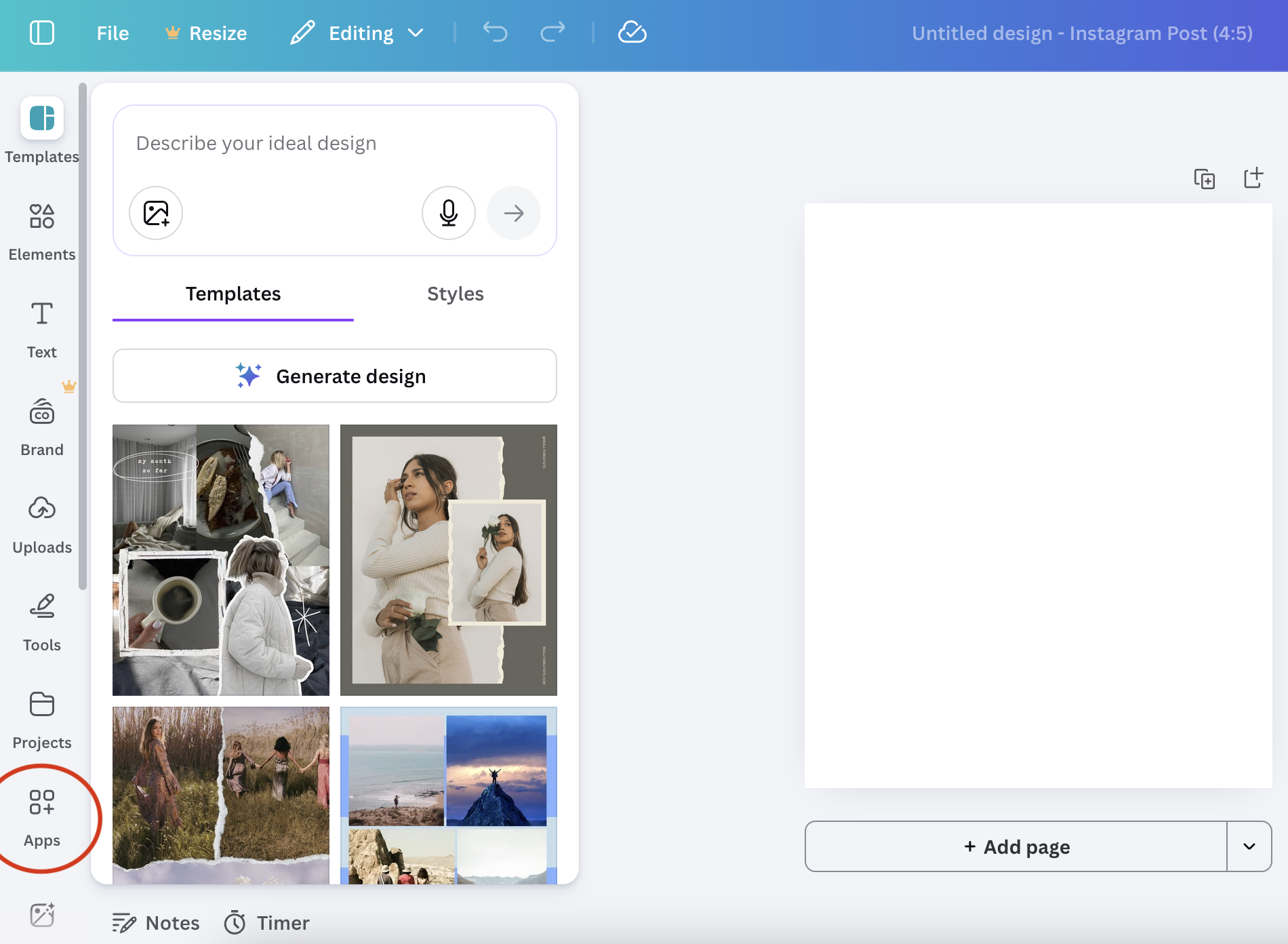
Step 2: Click “Apps” in the Left Sidebar
In the left hand menu, you will see an Apps tab. Click it. This opens the Canva app marketplace directly inside your workspace.
Step 3: Search or Browse
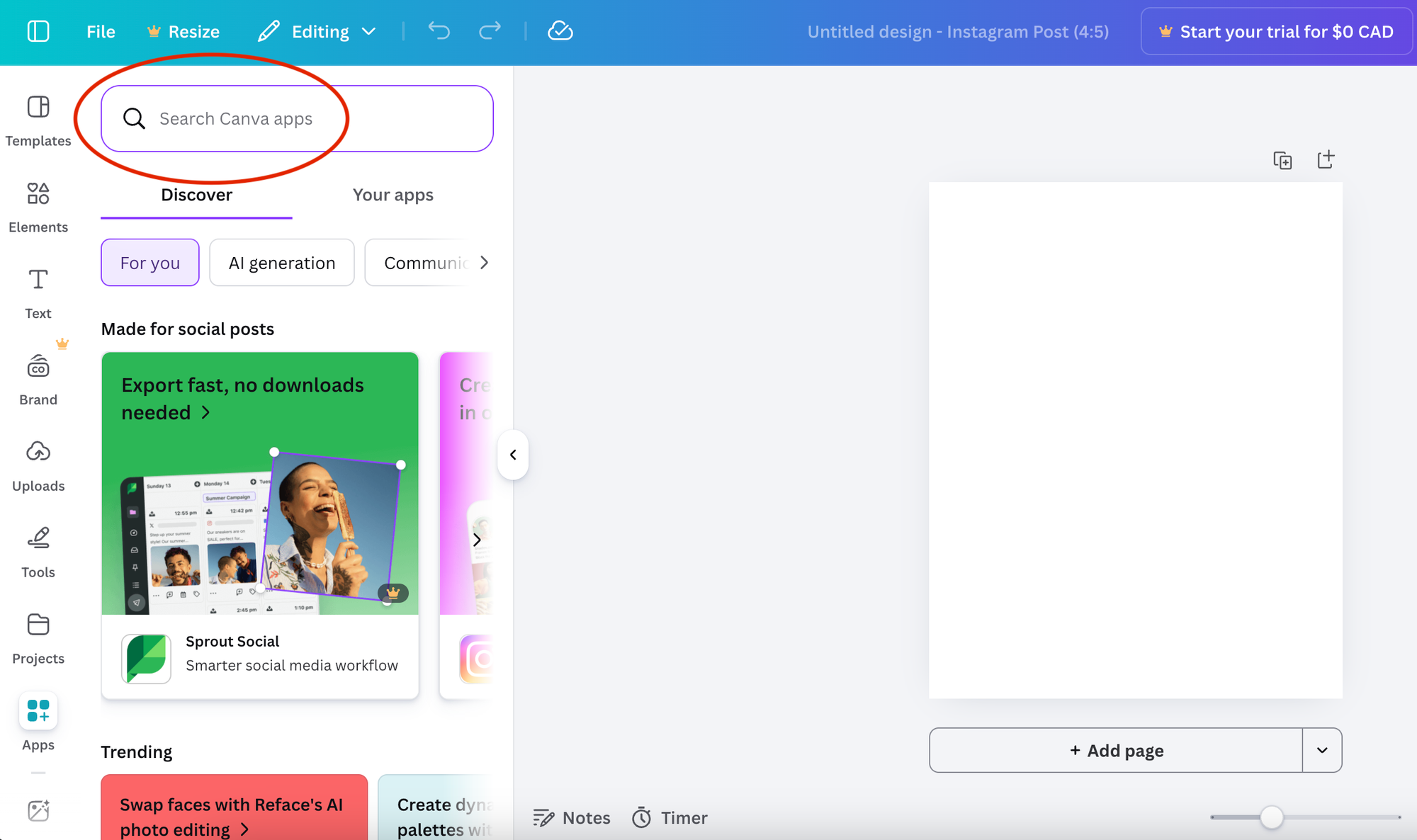
From here, you can:
- Browse trending apps
- Explore categories
- Search for specific tools
- Filter by AI powered tools
Once you click an app, you can either install it or use it immediately.
Step 4: Apply It Directly to Your Design
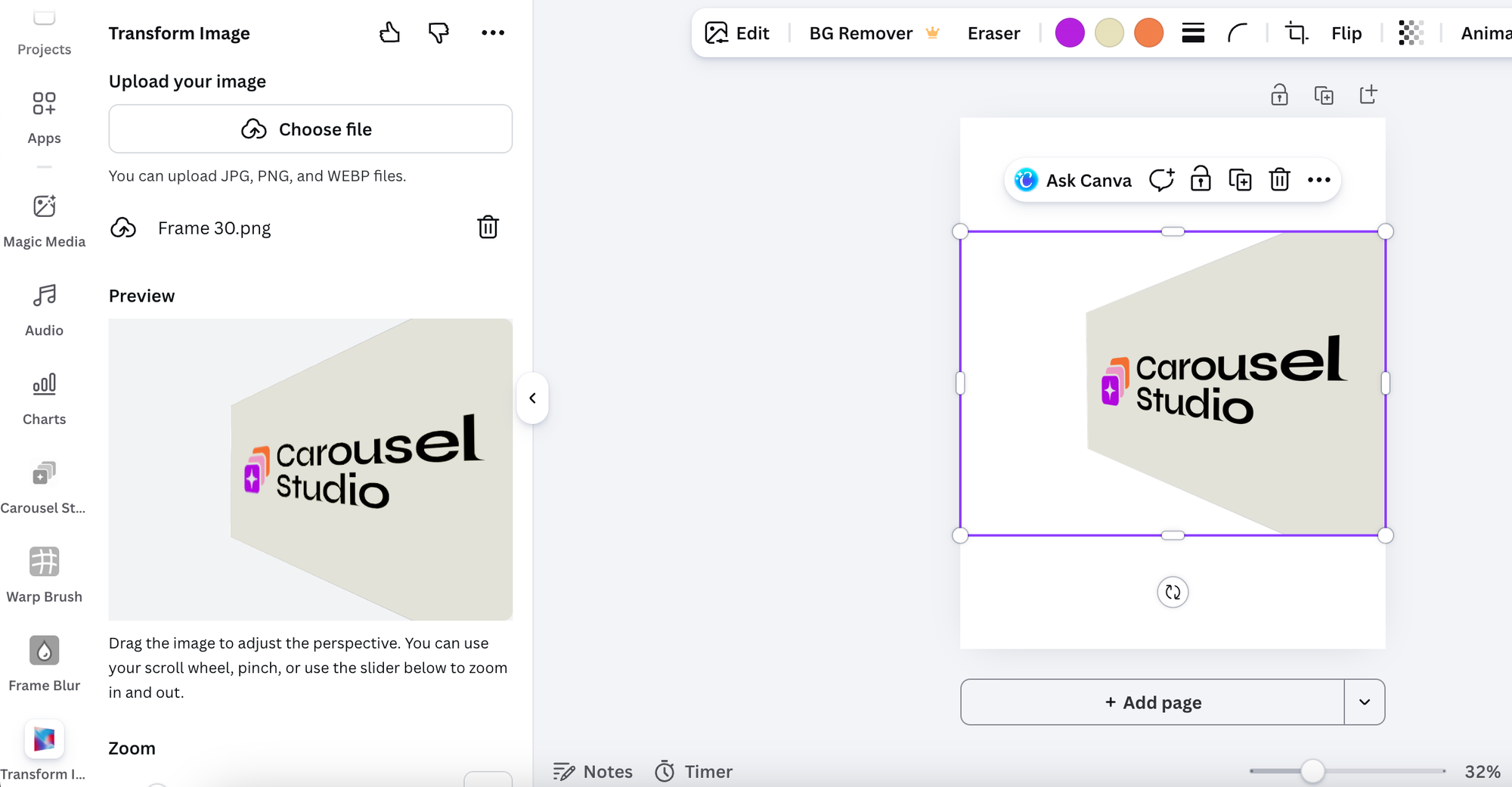
Most Canva AI apps and design apps allow you to:
- Generate content
- Insert elements
- Modify images
- Apply effects
And everything stays inside your design file.
This is where a lot of entrepreneurs miss the opportunity. They treat apps like fun extras instead of operational upgrades.
What Apps Will Help You Grow Your Business
The Canva app marketplace can feel like a candy store. Everything looks useful.
But here is the truth: you do not need twenty apps. You need a focused system.
Instead of asking, “What looks cool?” ask:
- What part of my content process feels slow?
- What tasks do I repeat every week?
- Where do I struggle with quality or consistency?
Then choose apps that directly solve those problems.
For example:
- If you struggle with visual originality, explore Canva AI generator tools and image blending apps.
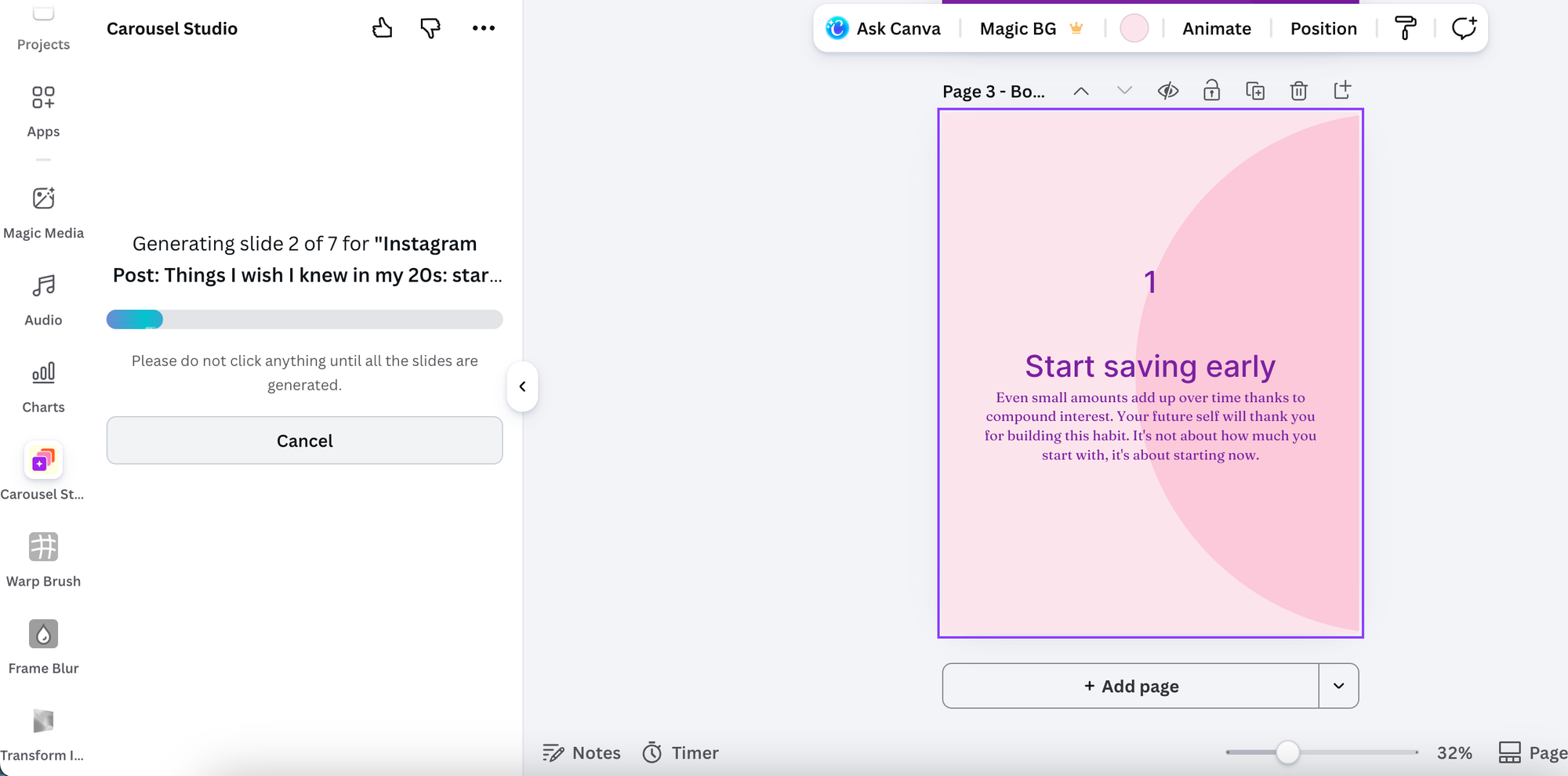
- If formatting carousels takes forever, use structured layout apps or a carousel specific tool like Carousel Studio
- If your designs look flat, add depth using shadow, reflection, and mockup apps.
The goal is operational clarity, not novelty.
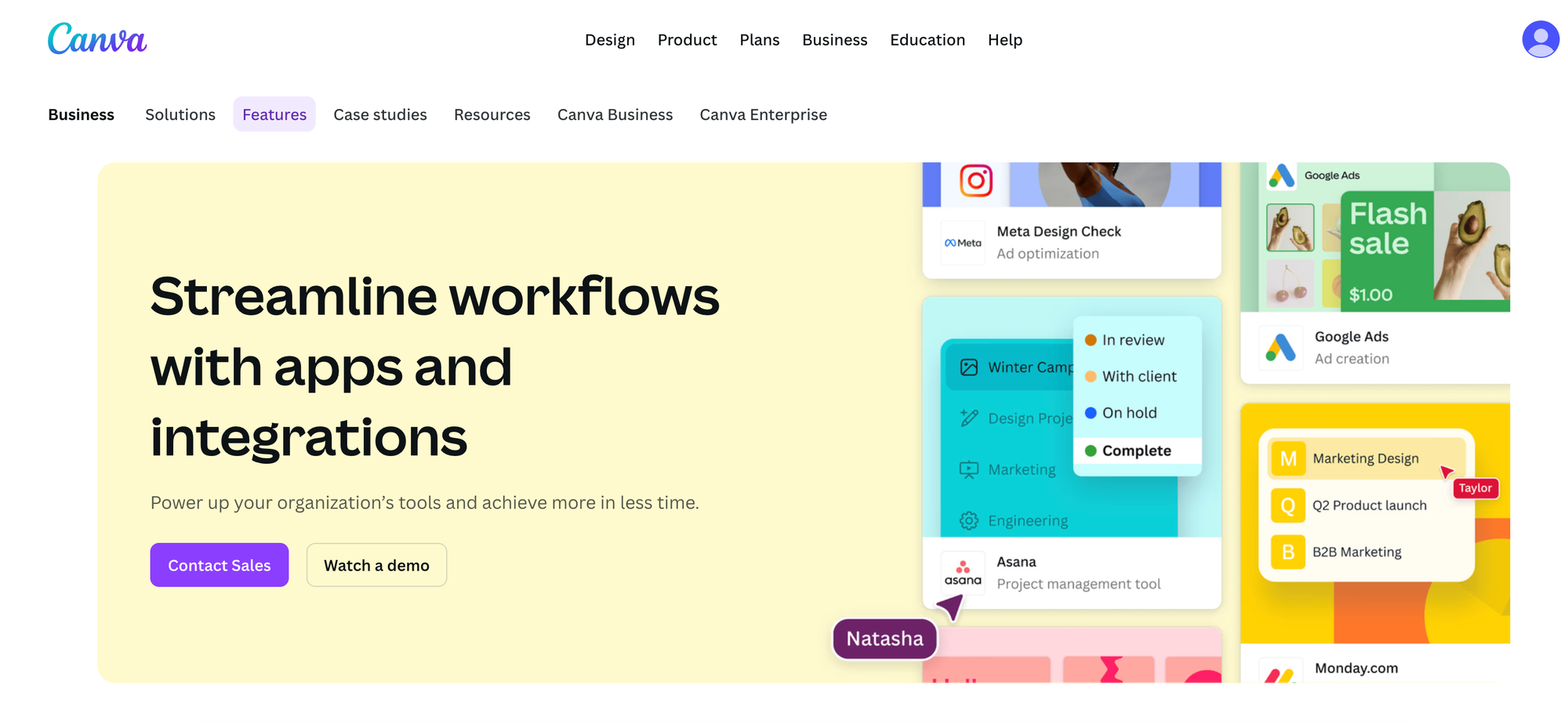
A Simple Canva App Workflow You Can Start Using This Week
Let’s make this practical.
Here is a streamlined workflow for a social media entrepreneur creating weekly content.
Step 1: Generate or Refine Ideas
Use Canva AI apps to:
- Brainstorm post angles
- Generate draft captions
- Create supporting visuals
This cuts down blank page time dramatically.
Step 2: Build the Core Design
Create your layout using:
- Brand templates
- Structured carousel tools
- Consistent spacing systems
If carousels are part of your strategy, this is where using a tool like Carousel Studio inside Canva can reduce manual formatting and speed up execution.
You can explore it here: https://dub.sh/canva-engyne
Step 3: Enhance and Polish
Use design enhancement apps to:
- Adjust lighting and clarity
- Blend images for depth
- Add subtle shadow or reflection effects
- Create mockups for promotional posts
This is the layer that moves your content from “nice” to “credible.”
Step 4: Repurpose
Resize or adapt your design for:
- Stories
- Pins
- LinkedIn posts
- Email graphics
This is how you multiply output without multiplying effort.
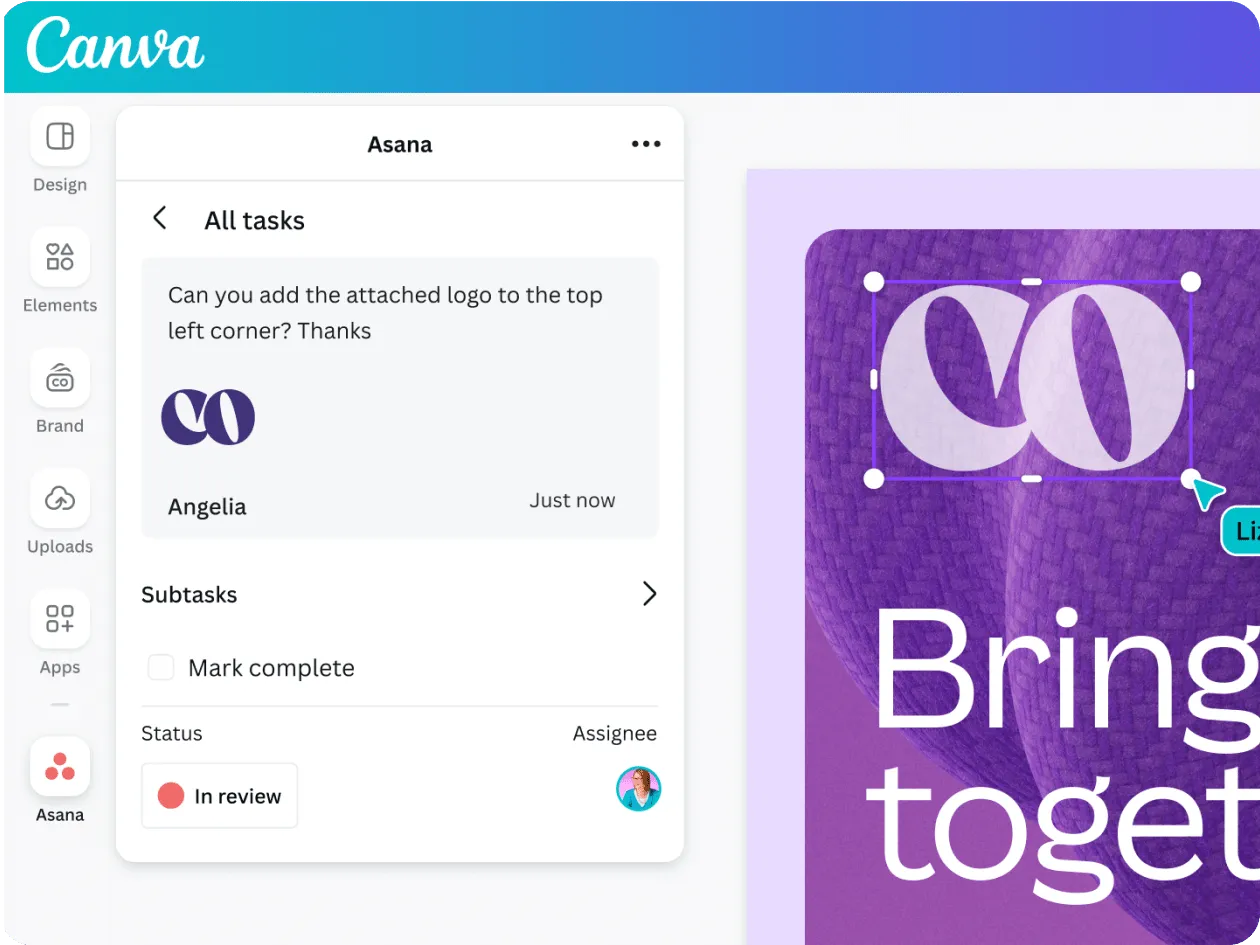
Common Mistakes to Avoid With Canva Apps
Let me save you some trial and error.
Here are the most common mistakes I see:
1. Installing Everything
More apps do not equal better results. Too many tools create clutter and slow you down.
2. Relying on AI Without Editing
Canva AI apps are powerful, but your brand voice still matters. Always refine and customize.
3. Ignoring Workflow Fit
If an app feels complicated or disrupts your process, it is not the right fit. Your system should feel smoother, not heavier.
4. Focusing Only on Aesthetics
Pretty is nice. Strategic is better.
Every app you use should either:
- Save time
- Improve clarity
- Increase engagement
- Support conversions
If it does none of those, you probably do not need it.
Bringing It All Together
Canva apps are not just add ons. They are infrastructure.
When you understand what Canva apps are and how to use them intentionally, your entire content workflow shifts. You move from manually piecing things together to operating with leverage.
The Canva app marketplace gives you access to tools that:
- Speed up creation
- Improve quality
- Support strategic growth
But tools only work when you use them with intention.
Start small. Choose one or two apps that solve your biggest bottleneck. Build your workflow around them. Refine as you grow.
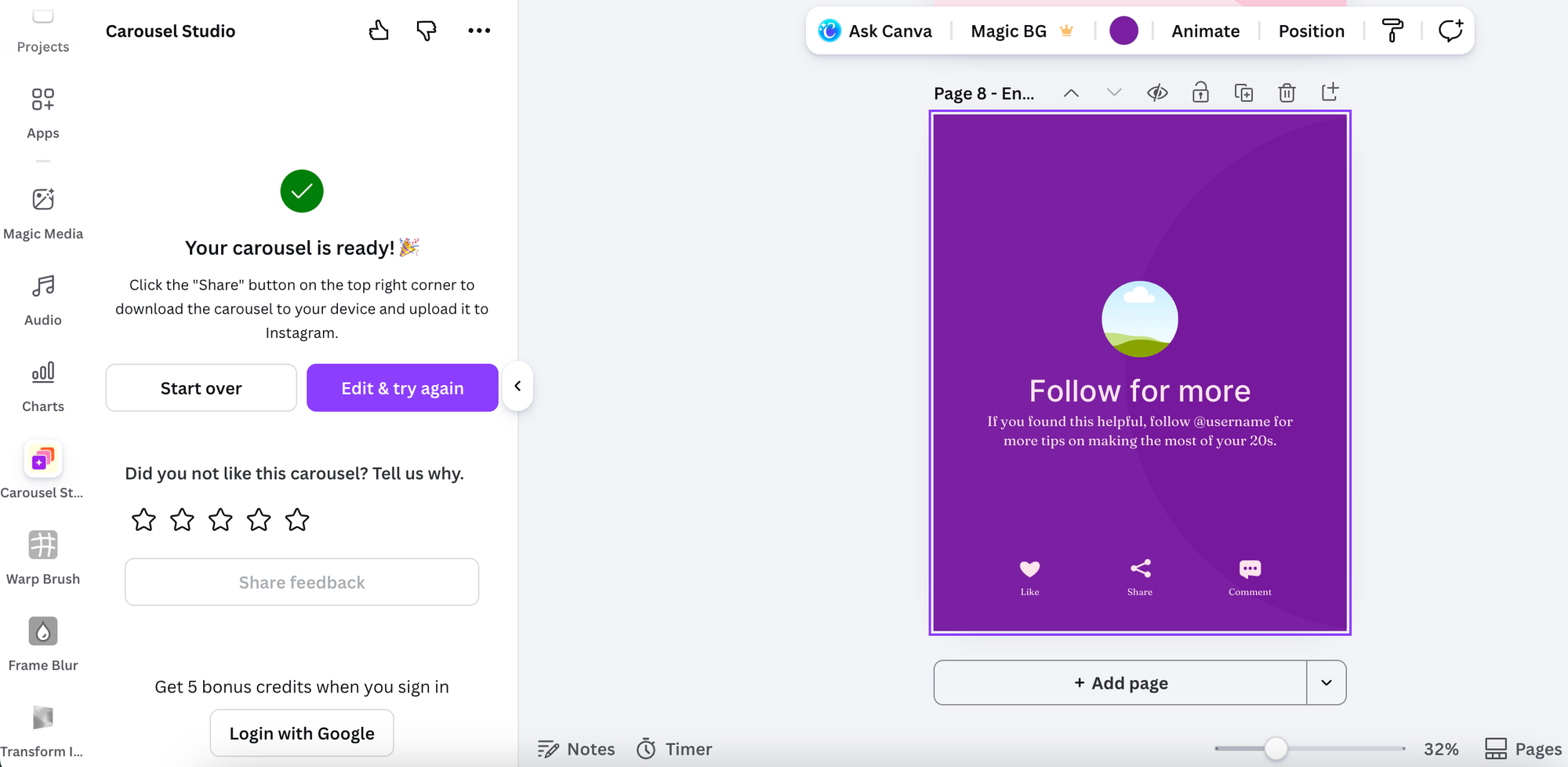
And if carousels are a core part of your visibility strategy, try Carousel Studio inside Canva here.
The goal is not more effort. It is smarter systems.
When you use canva apps strategically, your content starts working with you instead of exhausting you.
Frequently Asked Questions
What are Canva apps?
Canva apps are built in and third party tools inside Canva that expand its functionality. They allow you to generate, enhance, and customize designs directly within your workspace.
How to find and use apps in Canva?
Open any design, click the Apps tab in the left sidebar, browse or search for a tool, and launch it directly inside your project. Most apps work instantly without complicated setup.
How to use Canva Apps for social media marketing?
Use Canva apps to speed up content creation, enhance visuals, generate AI powered graphics, and repurpose designs across platforms. Focus on apps that support your main content format.
Are Canva apps free to use?
Many Canva apps offer free features, while some include premium upgrades or usage limits. Always review pricing and feature details before committing.
What are Canva AI apps?
Canva AI apps are tools inside Canva that use artificial intelligence to generate images, text, and design enhancements. They help reduce manual work and improve efficiency.