5 Canva Apps for Content Creation in 2026 (You Don't Need Canva Pro!)

Most people open Canva, use the same templates they always use, and call it a day. But if your content has been feeling a little flat lately, the Canva App Marketplace might be exactly what you have been sleeping on.
The App Marketplace is packed with free third-party tools that plug directly into your Canva workflow. No downloading extra software, no switching between tabs, no Canva Pro required. Below are six apps worth knowing about in 2026. Together, they cover everything from refining your photos to seriously speeding up your content creation process.
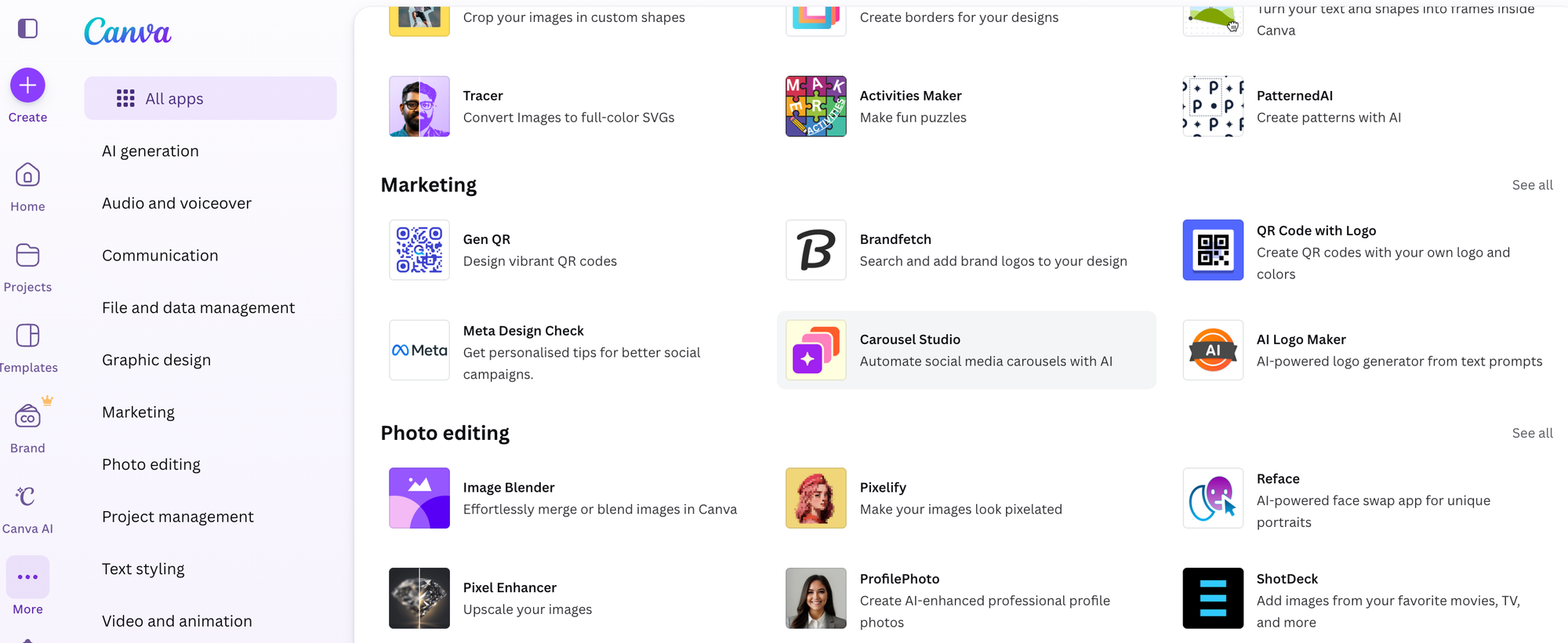
Here Are the 5 Apps at a Glance
Before we dig in, here is a quick overview of what each app does so you can skip straight to the ones most relevant to you:
- Carousel Studio - Creates scroll-stopping carousel posts from a single prompt
- Warp Brush - Distorts, grows, or shrinks specific parts of any image
- Frame Blur - Adds blur, color overlays, pixelation, and motion effects to images
- Texture - Layers film grain, grunge, paper, and other overlays onto your visuals
- Transform Image - Shifts the perspective of any image with a freehand drag
And in case you're not familiar with what Canva apps are or you're never heard of Canva's app marketplace, visit our recent blog [LINK] to learn everything you need to know.
Now let's get into the details.
1. Carousel Studio
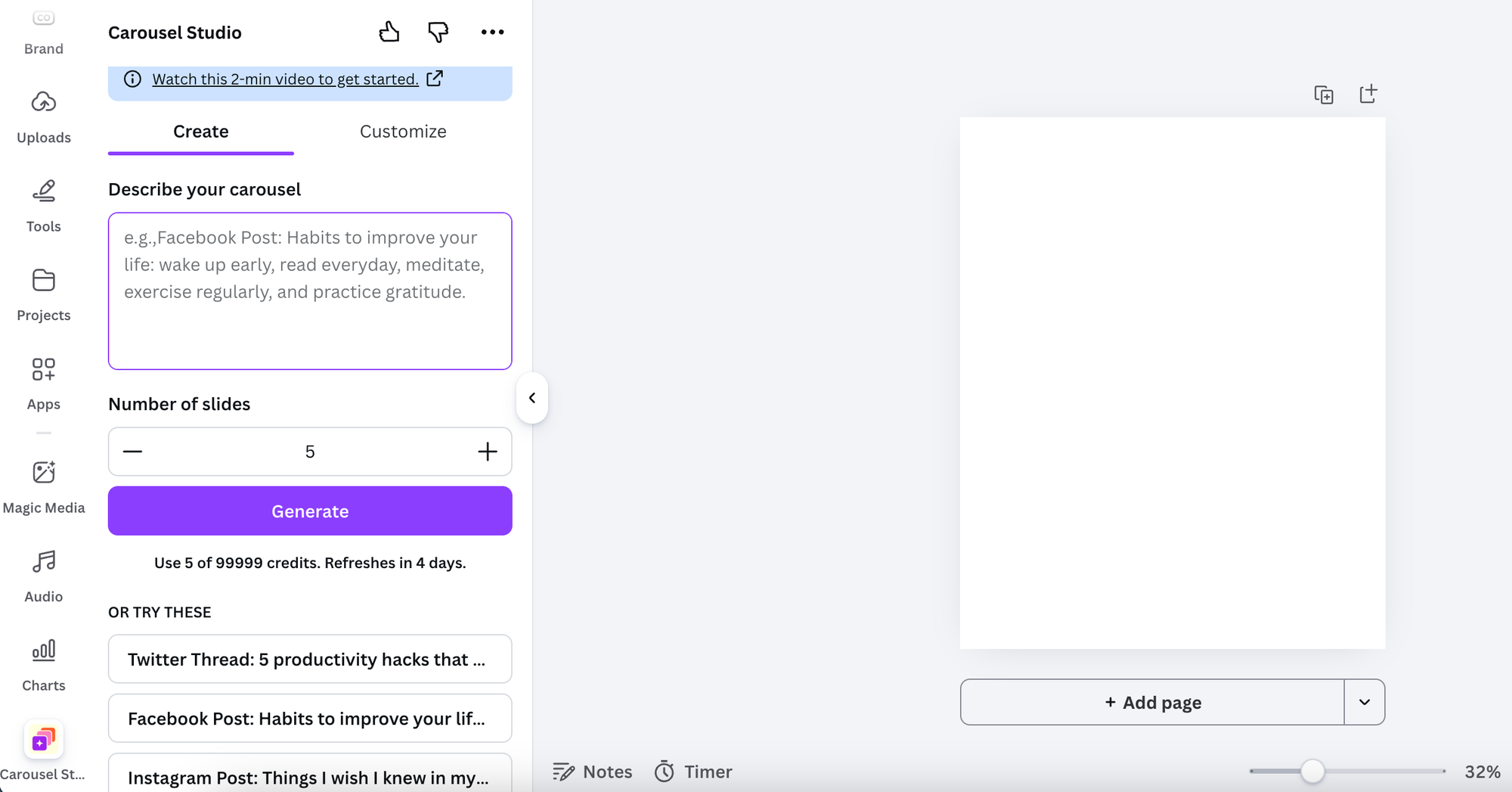
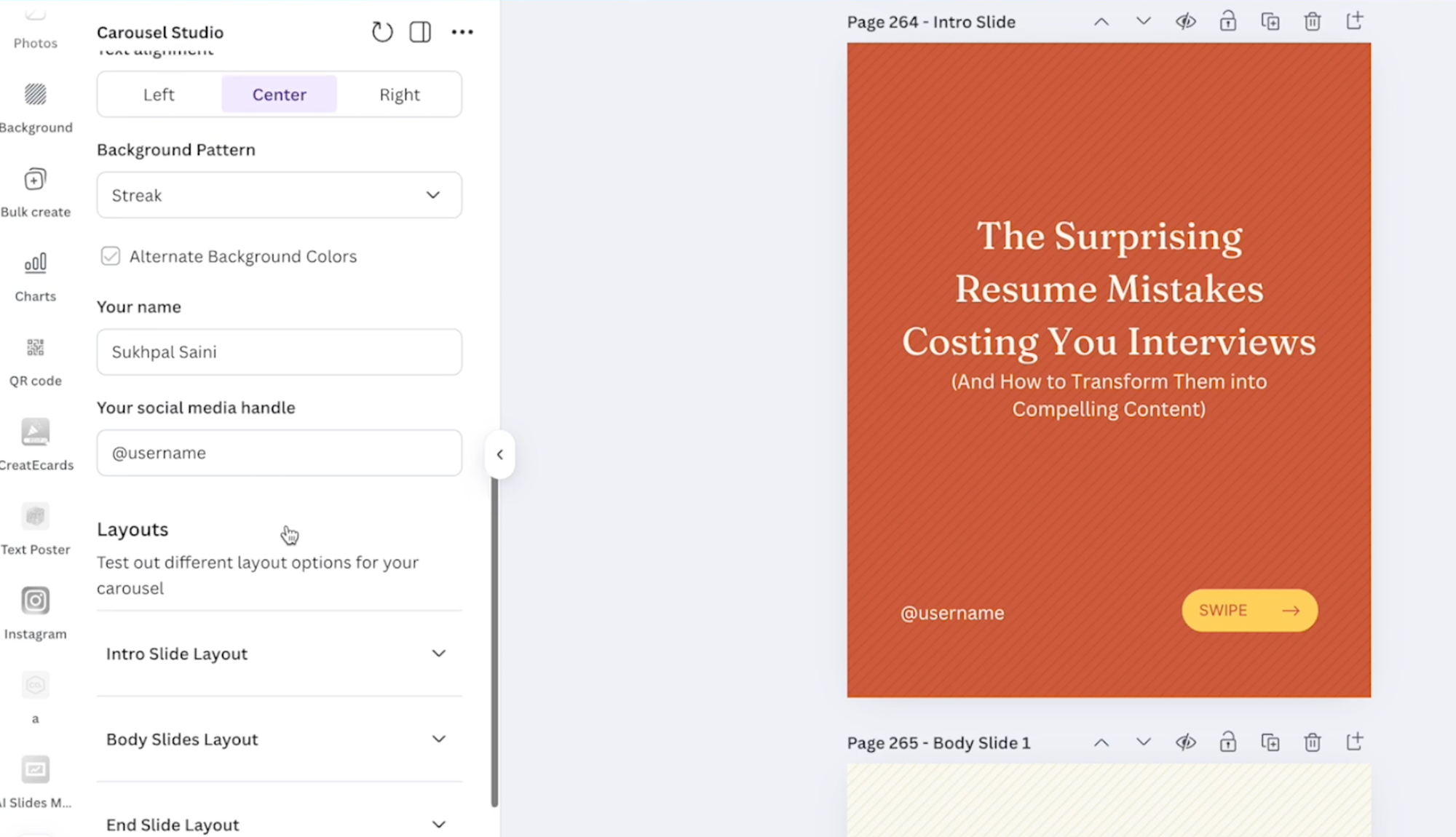
If you have been putting off carousel content because it feels like too much work, Carousel Studio is going to remove every excuse you had. Describe your topic, choose a tone, pick the number of slides, and hit generate. The app produces polished, on-brand slides with cohesive layouts and scroll-worthy copy in one go.
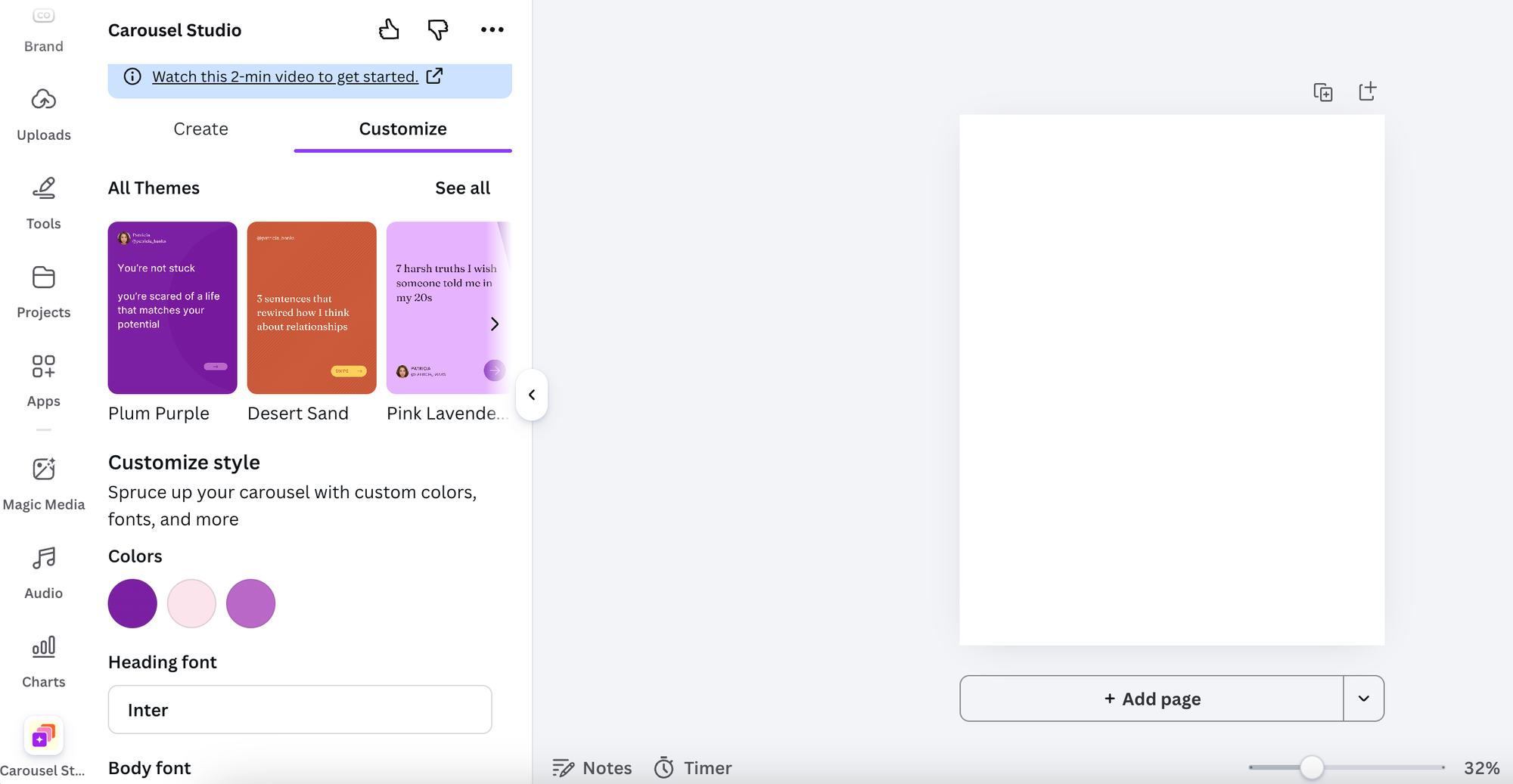
You can customize fonts, colours, layouts, and background patterns, and the app saves your brand preferences so future carousels are even faster. For anyone creating educational content or building authority in their niche, carousels consistently drive some of the highest engagement on Instagram and LinkedIn. Carousel Studio makes producing them feel less like a project and more like a Tuesday afternoon task.
Find it in: Canva Apps search bar, type "Carousel Studio"
2. Warp Brush
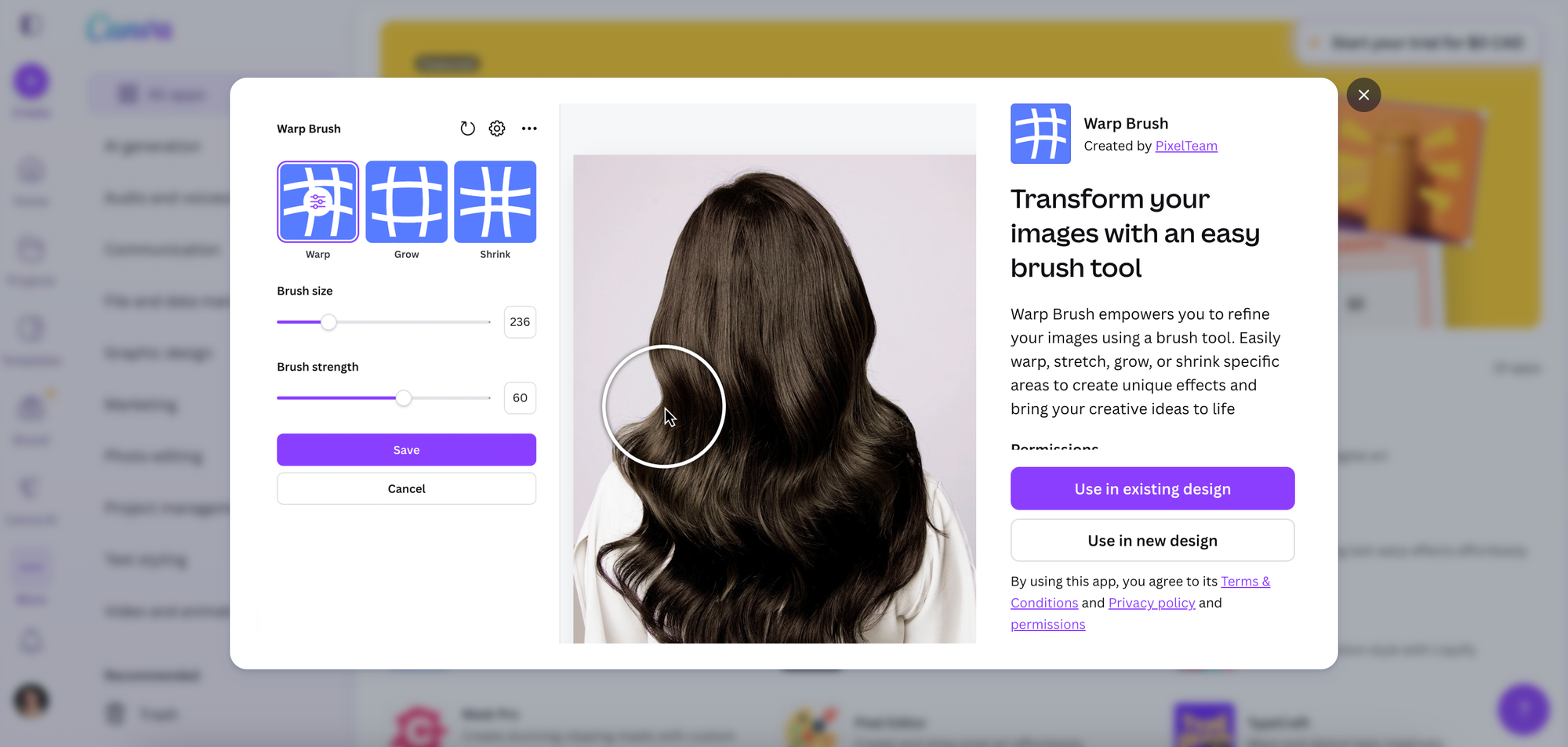
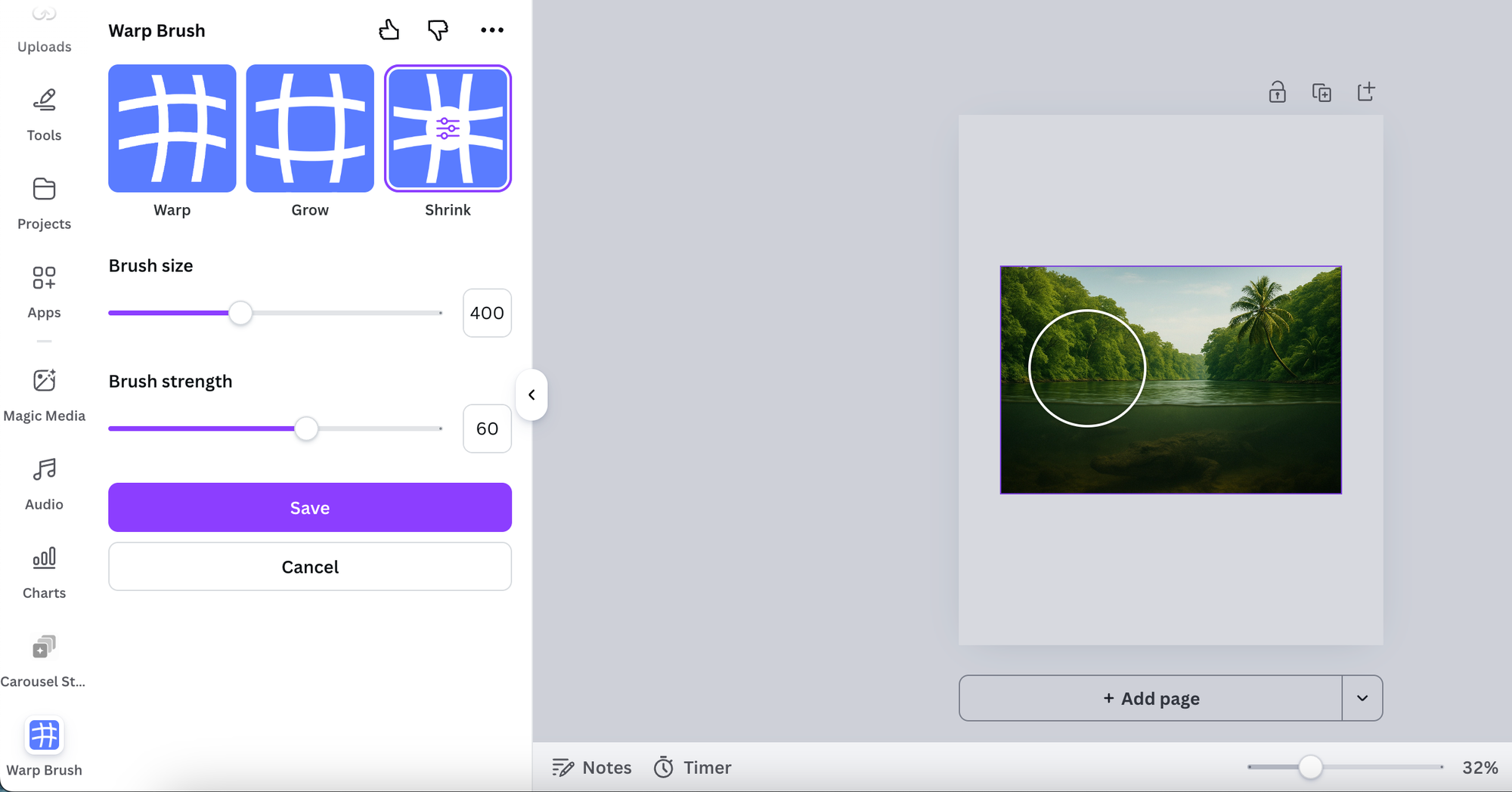
Think of Warp Brush as a lightweight version of Photoshop's liquify tool, living right inside Canva. It lets you paint over specific areas of an image to push, pull, grow, or shrink them. The effect is subtle when you want it to be, dramatic when you need it to be, and surprisingly precise once you get the hang of adjusting the brush size and strength.
The use cases are more practical than they might sound. Say you have a product photo where the packaging looks slightly squashed, or a lifestyle image where a piece of clothing is bunching in an unflattering way. Warp Brush lets you nudge those things into place without sending the image off to a retoucher. You can also add volume to hair, resize a specific element within a photo, or just have fun creating more editorial-looking visuals.
There are three modes to work with: Warp (for pushing and pulling), Grow (for making things bigger), and Shrink (for pulling things back). Just remember to hit Save before clicking anywhere outside the app, because it does not autosave your work.
Find it in: Canva Apps search bar, type "Warp Brush"
3. Frame Blur
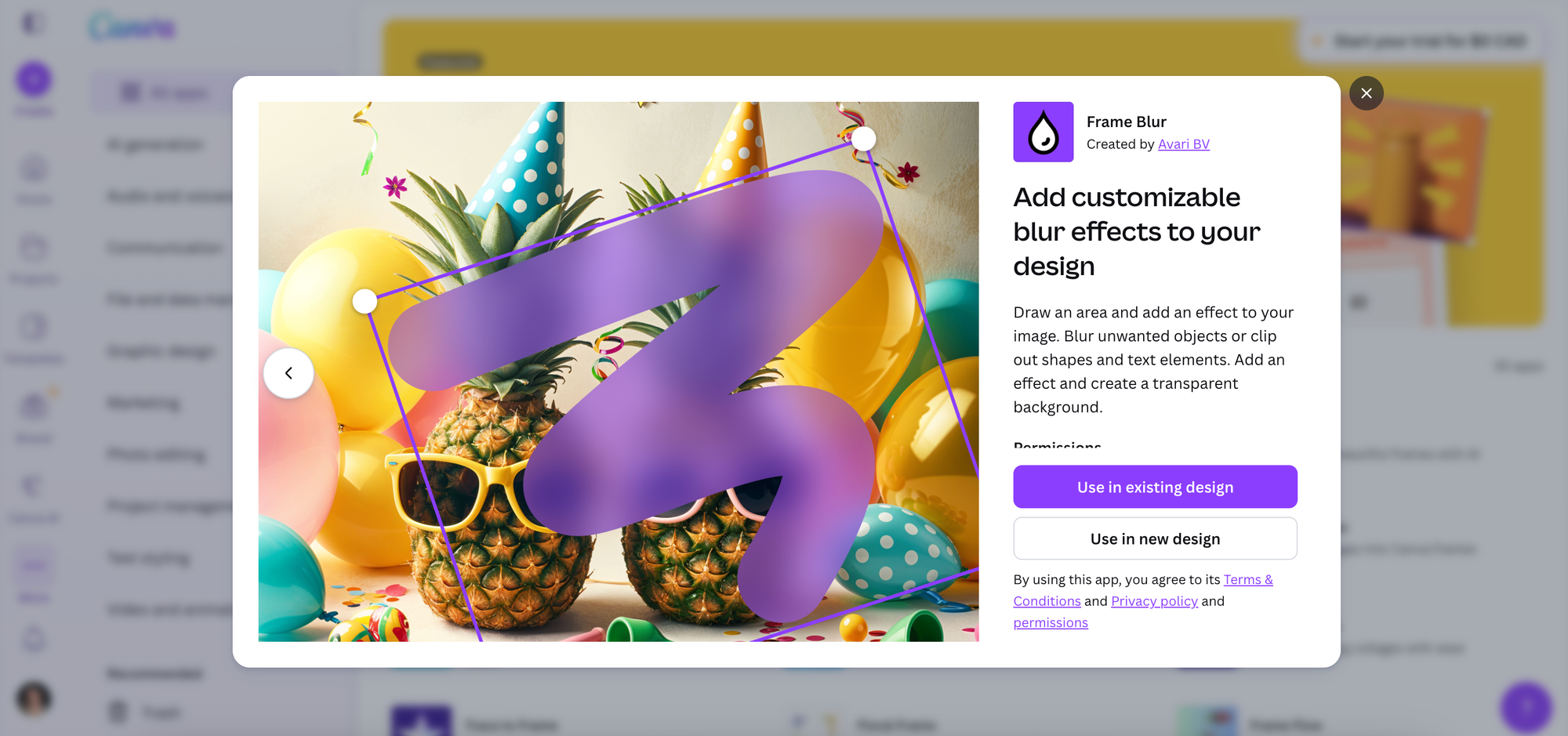
Frame Blur sounds like a simple blur tool, and it is, but it also does a lot more. You paint directly onto an image using a brush, then apply whichever effect you want to that painted area. The standard blur is there, but the options that make this app stand out are motion blur, zoom blur, pixelation, and color overlays.
Motion blur adds energy and speed to a specific area, great for making product shots feel more dynamic. Zoom blur creates a pull-focus effect you often see in editorial photography. Pixelation is useful for censoring faces or sensitive information cleanly. Color overlays let you paint a tinted wash over part of an image to create mood or visual separation between elements. You can layer these effects and adjust transparency, as long as you save before clicking outside the app.
Find it in: Canva Apps search bar, type "Frame Blur"
4. Texture
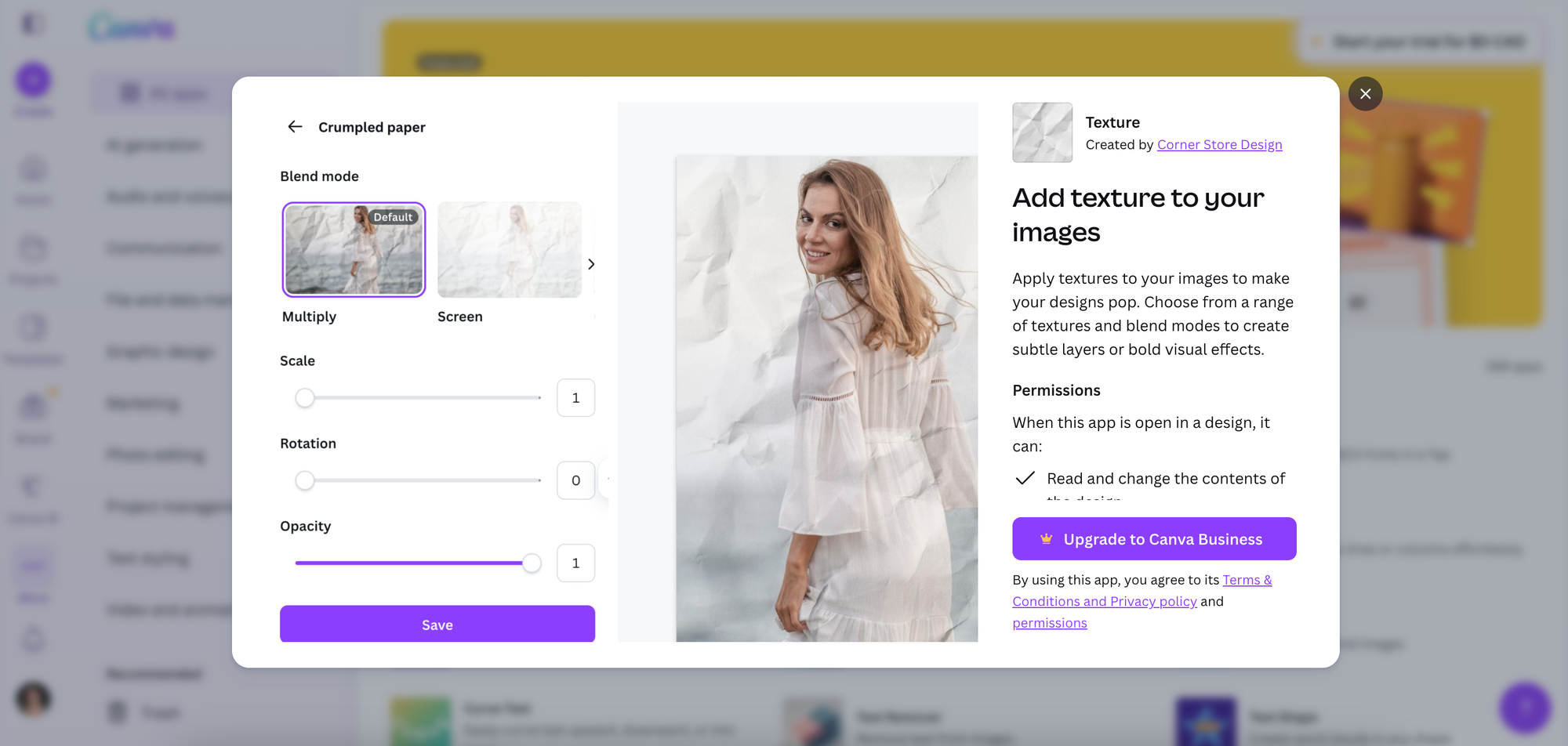
There is a reason professionally designed content tends to feel richer than something knocked together quickly. Often it comes down to texture. A subtle paper grain, a hint of film noise, a whisper of grit over a flat background: these things add a layer of depth that makes visuals feel more intentional.
The Texture app gives you a library of overlays including paper, paint, VHS, grit, film grain, light, fabric, and grunge. Choose your overlay, scale and rotate it, adjust the opacity, and experiment with blend modes. Multiply is a solid starting point, but Darken, Lighten, and Soft Light each produce different results depending on the underlying image. Once you start using this app, it tends to show up in almost everything you make.
Find it in: Canva Apps search bar, type "Texture"
5. Transform Image
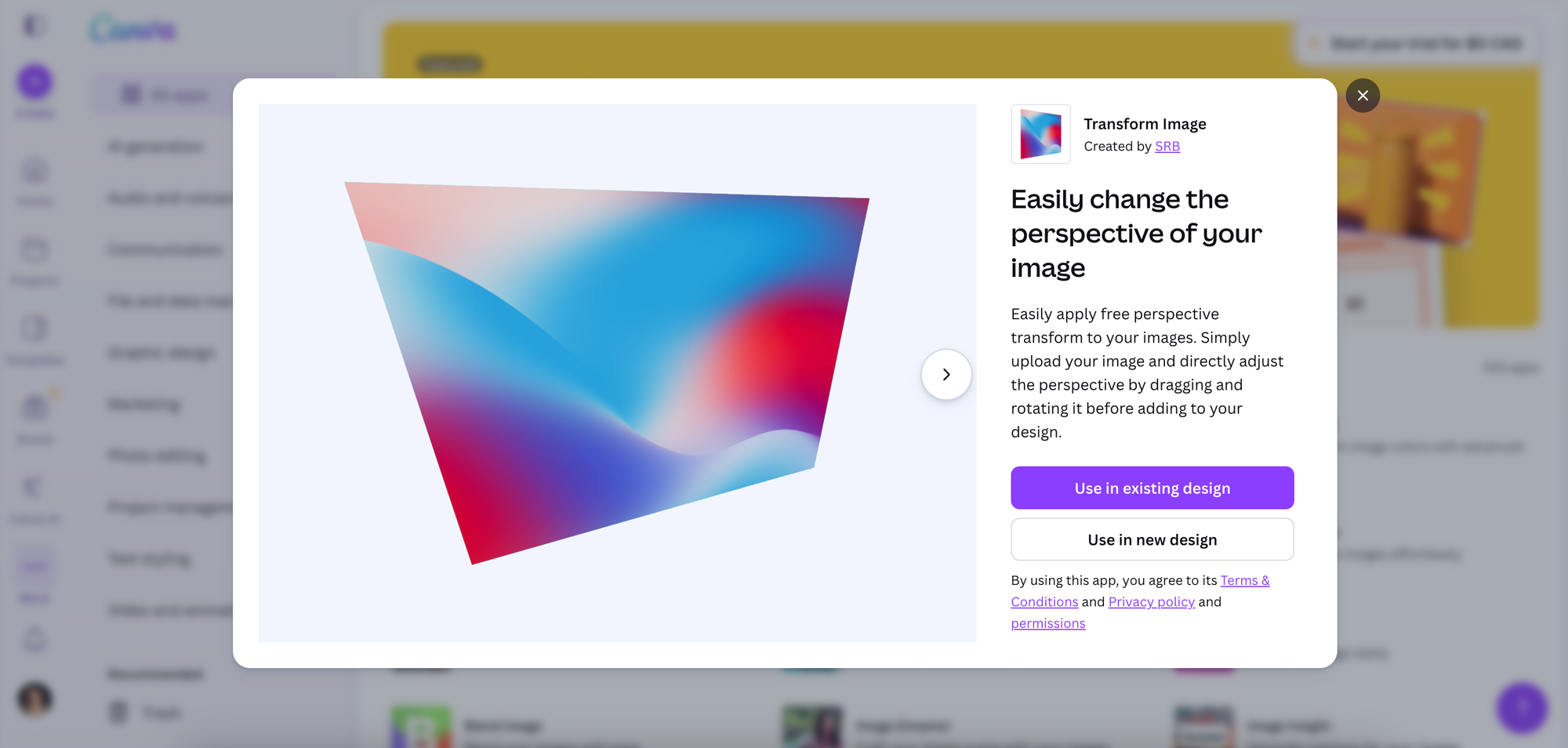
Transform Image lets you change the perspective of any image directly inside Canva. You upload your image, then drag and rotate it freehand until it sits at the angle you need, and add it straight to your design from there.
For business owners, this is particularly useful for creating professional-looking mockups without hiring a designer or buying specialist software. If you want to show your digital product on a laptop screen, place your packaging at a natural angle in a lifestyle photo, or give a flat graphic some depth and dimension, Transform Image handles it in minutes. It keeps your whole workflow inside Canva, which means less time toggling between apps and more time actually creating content. It’s also 100% free.
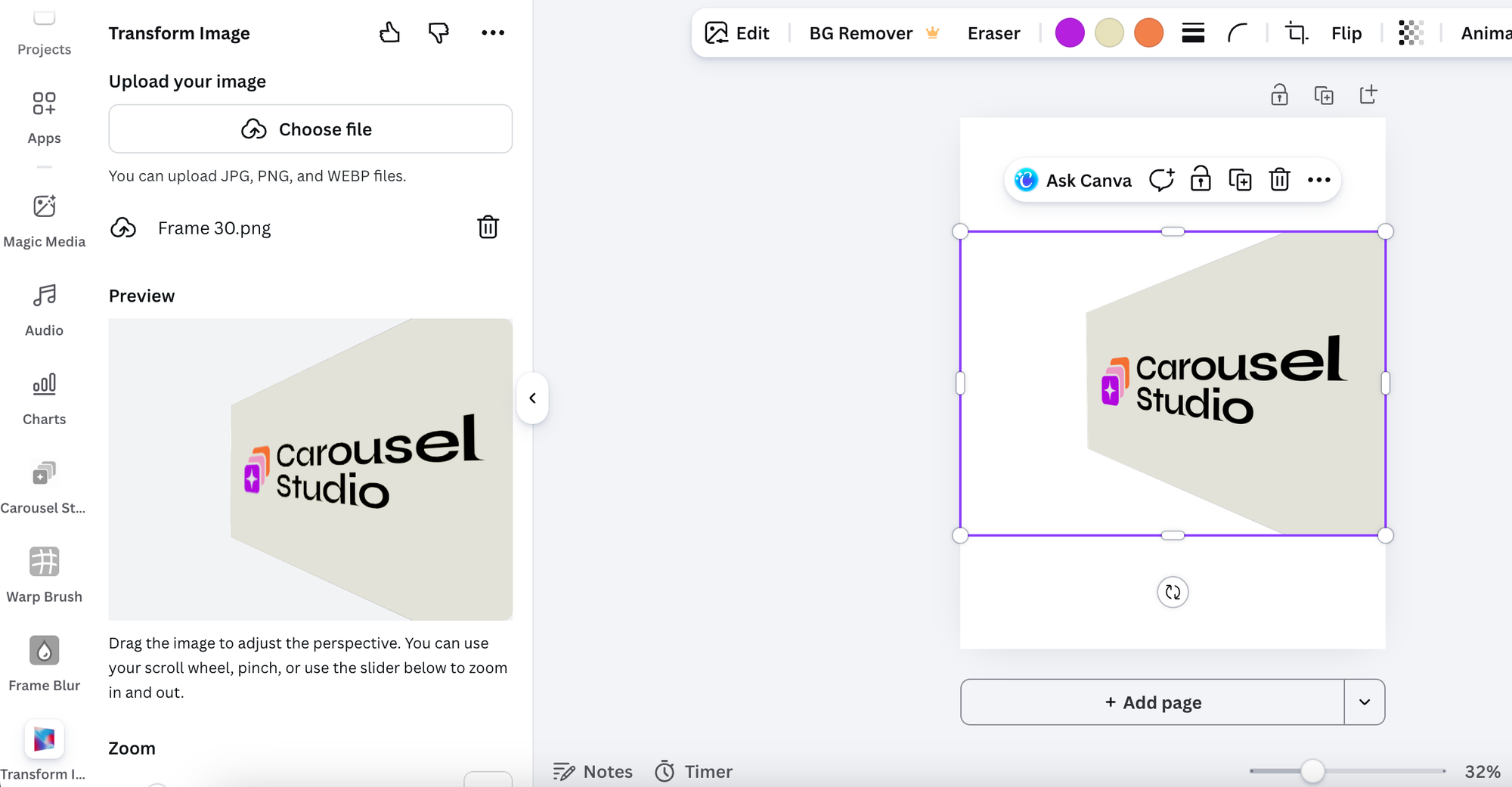
Find it in: Canva Apps search bar, type "Transform Image"
The Bigger Takeaway
The Canva App Marketplace is one of the most underused resources available to content creators right now. Most people never venture past the main editing panel, which means they are leaving a significant amount of capability sitting untouched in a sidebar.
None of the apps above require Canva Pro. None require technical skills. What they do require is about twenty minutes of curiosity. That investment pays off quickly.
If you are only going to try one, start with Carousel Studio. It tackles one of the most effective and time-consuming parts of content creation and makes it genuinely fast. Try it free here and see how quickly you can go from idea to ready-to-post.
Frequently Asked Questions
Are Canva Marketplace apps free to use?
Most apps in the Canva Marketplace are completely free, including all six covered in this post. A small number of apps offer premium tiers or require a paid subscription of their own, but you will always be able to see that before you install. You do not need Canva Pro to access or use third-party apps.
How do I find and install apps in Canva?
Open any design in Canva and click the Apps tab in the left sidebar. From there you can browse featured apps or search by name. Click an app to open it, and it will prompt you to install if it is your first time. Once installed, it stays in your sidebar for quick access going forward.
Can I use Canva apps on the free plan?
Yes. The Apps Marketplace is available to all Canva users regardless of plan. Free users can install and use third-party apps the same way Pro users can. The only limitation is that some apps may require you to upload your own images rather than pulling directly from your Canva media library, depending on how they are built.
What is the difference between Canva's built-in editing tools and Marketplace apps?
Canva's built-in tools handle the core design workflow: templates, text, elements, basic photo editing, and brand kits. Marketplace apps are third-party additions that extend what Canva can do, often adding more specialized capabilities like perspective warping, texture overlays, or AI-generated carousel content. Think of the apps as plug-ins that fill the gaps Canva has not (yet) built natively.
Do Canva apps work on mobile?
Some do, but the experience varies. Apps like Carousel Studio work well across devices, while more advanced image manipulation apps such as Warp Brush or Reshaper tend to be better suited to desktop use where you have more precision and screen space. If you are primarily a mobile Canva user, it is worth testing each app on your device before building it into your workflow.
Is Canva worth using in 2026 without a Pro subscription?
For most content creators and small business owners, yes. The free plan gives you access to thousands of templates, the full Apps Marketplace, and a solid set of editing tools. Where Pro makes a meaningful difference is in areas like background removal, brand kit storage, Magic Resize, and access to premium stock assets. If those features matter to your workflow, the upgrade is worth considering, but plenty of people create high-quality content on the free plan alone.